Complete operational instructions and step-by-step guides for restaurant cashiers, managers, and kitchen staff.
8 modules found
System Overview
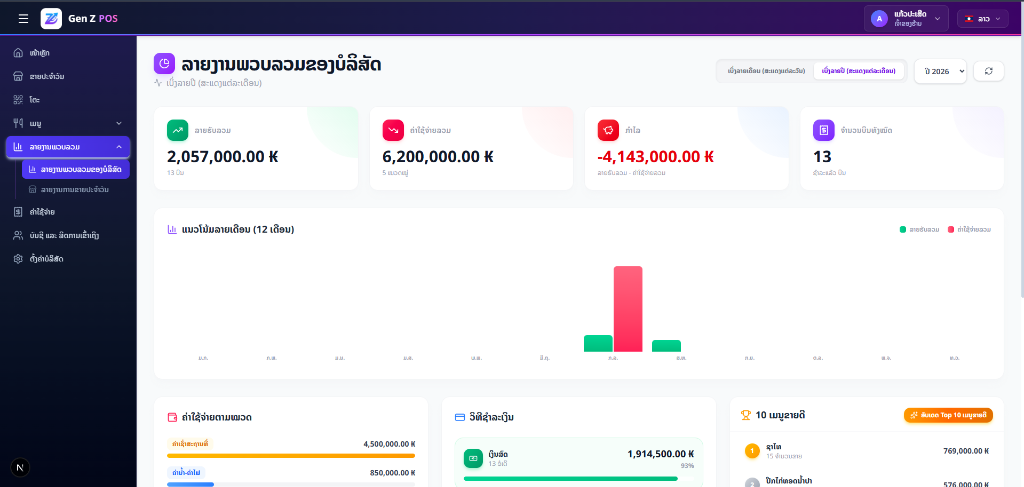
1. Sales Summary & Dashboard
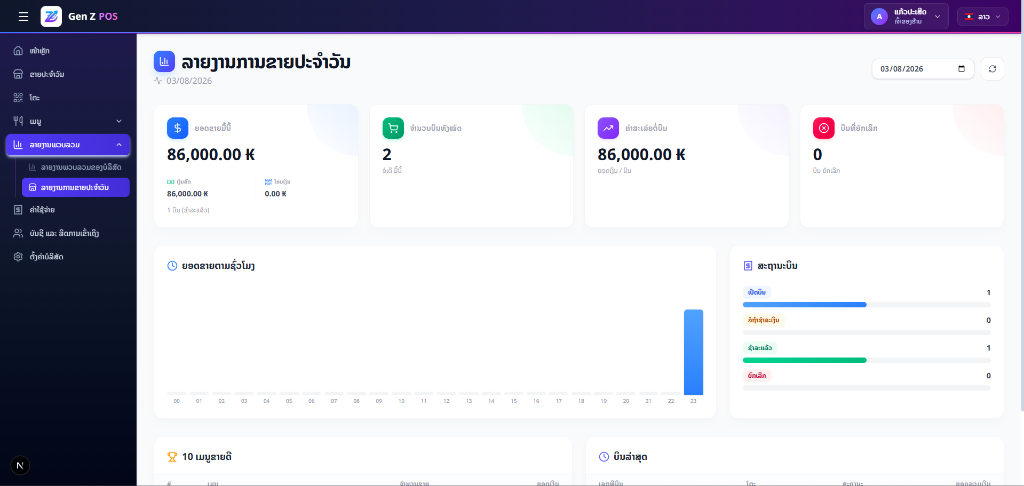
Track restaurant sales in real-time. Features a built-in 05:00 AM cutoff so midnight orders stay in the same business day—ideal for restaurants, bars, and late-night spots.
pos.nextlaos.com/dashboard
Click to Enlarge
📸 Dashboard summarizing revenue, orders, net profits, and top 10 best-sellers.
Calculates total sales minus recorded expenses, showing your true profit directly on your phone.
2
Switch Languages
Tap the globe icon to switch languages anytime: Lao (🇱🇦), Thai (🇹🇭), English (🇬🇧), Vietnamese (🇻🇳), and Chinese (🇨🇳).
💡Tip: All data syncs in real time via secure cloud. Multiple staff can work simultaneously.
POS & Tables
2. Table Map, Ordering & Kitchen Status Control
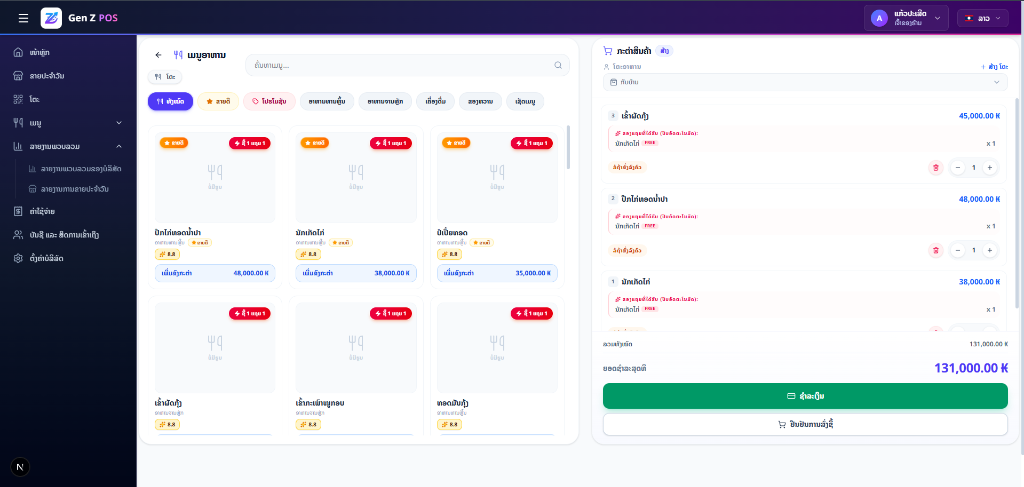
Simple table management: tap empty tables to take orders, move or merge tables easily, split checks per guest, and toggle kitchen status open or closed at last call.
pos.nextlaos.com/pos
Click to Enlarge
📸 POS Screen: Interactive table map (Available/Occupied), Takeaway bar, and live cart.
1
Take Orders & Select Options
Tap dishes to select size (S/M/L, Hot/Iced) and options (spiciness, sweetness, toppings), then confirm.
2
Move Tables & Switch to Takeaway
Tap 'Move Table' and select the new table or switch to Takeaway. The old table frees up immediately and all items transfer over.
3
Split Bill per Customer
Split by Guest 1, Guest 2, etc., tap the items each guest had, and the system prints individual receipts with exact amounts.
4
Open or Close Kitchen Orders
At closing time (Last Call), staff can toggle 'Kitchen Closed'. Food orders are stopped so the kitchen staff can clean up, but guests can still order drinks and request the bill.
💡Safety: Tables with active orders cannot be deleted by accident to protect your sales data.
Keep your cash drawer accurate and prevent loss: record starting cash float at opening, track cash vs. transfer sales, log mid-shift cash in/out, count actual cash at closing, and print a summary Z-Report instantly.
pos.nextlaos.com/dashboard/shifts
Click to Enlarge
📸 Shift Closing Summary: Total sales, cash vs transfers, expenses, and drawer cash.
pos.nextlaos.com/dashboard/shifts
Click to Enlarge
📸 POS Screen: Easy Open/Close shift buttons with cashier name and shift duration.
1
Opening Shift & Starting Cash Float
When starting work, the cashier taps 'Open Shift' and enters the starting drawer change (e.g. 500,000 Kip). The system logs the cashier name and start time.
2
Record Cash In & Out (Pay In / Pay Out)
If cash is taken from the drawer (e.g. urgent ice purchases, moving cash to the safe), tap 'Pay Out' with a short reason so the drawer count stays 100% accurate.
3
Close Shift & Count Cash
At the end of the shift, tap 'Close Shift' and count the physical cash in the drawer. The system compares it with cash sales and shows immediately if it is balanced, short, or over.
4
Print Shift Handover Slip (Z-Report)
The thermal printer prints a Shift Z-Report detailing total sales, cash, transfers, starting cash, and signature lines for smooth staff handover.
💡Late-Night Rollover: For bars and nightlife spots, the business day cuts off at 05:00 AM, keeping past-midnight sales cleanly in the same business day.
QR Ordering
4. Customer Table QR Self-Ordering (QR Ordering)
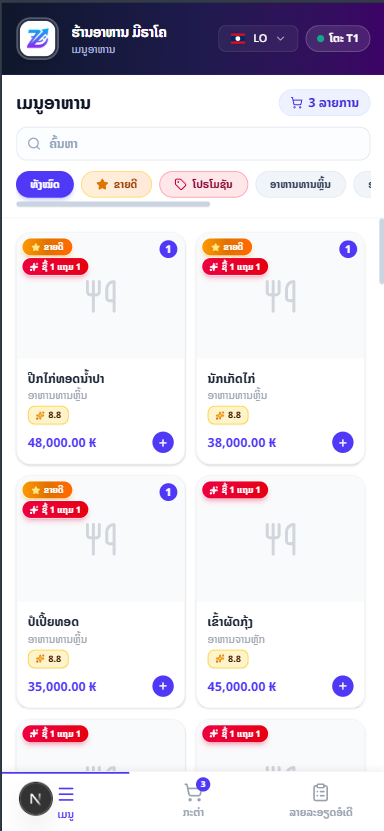
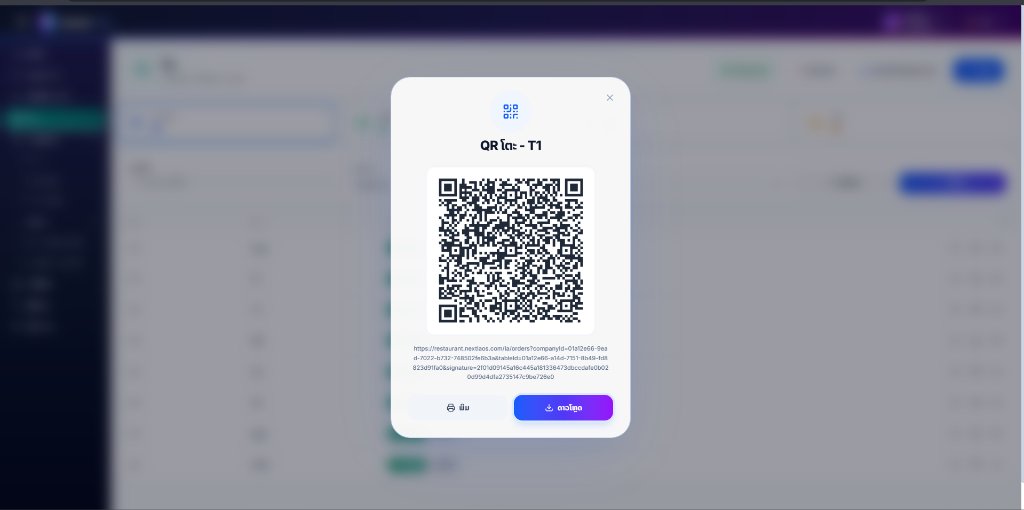
Guests scan the table QR code with their smartphone camera to browse photo menus, order food, and request the bill—no app download required, fully protected against fake orders.
pos.nextlaos.com/menu/qr
Click to Enlarge
📸 Mobile Web Ordering Interface: Visual menu catalog, cart, and bill request button.
pos.nextlaos.com/menu/qr
Click to Enlarge
📸 Table QR Stand: Instant scan-and-order without downloading any app.
1
Fake Order Protection (Signature & GPS)
Each table QR has a unique security code to prevent copied links. Optional GPS check ensures only guests physically inside the restaurant can submit orders.
2
Customer Bill Request from Phone
When finished dining, guests tap 'Request Bill' on their phone. The cashier screen chimes with an alert and marks the table as 'Waiting for Bill' so staff can bring the check promptly.
3
Kitchen Closed Notification on Customer Phone
When the restaurant turns on 'Kitchen Closed', guests see an orange alert banner on their phone saying orders are closed. Kitchen dishes are disabled, but drinks and bill requests remain active.
Promotions & VIP
5. Promotions & VIP Membership Discounts
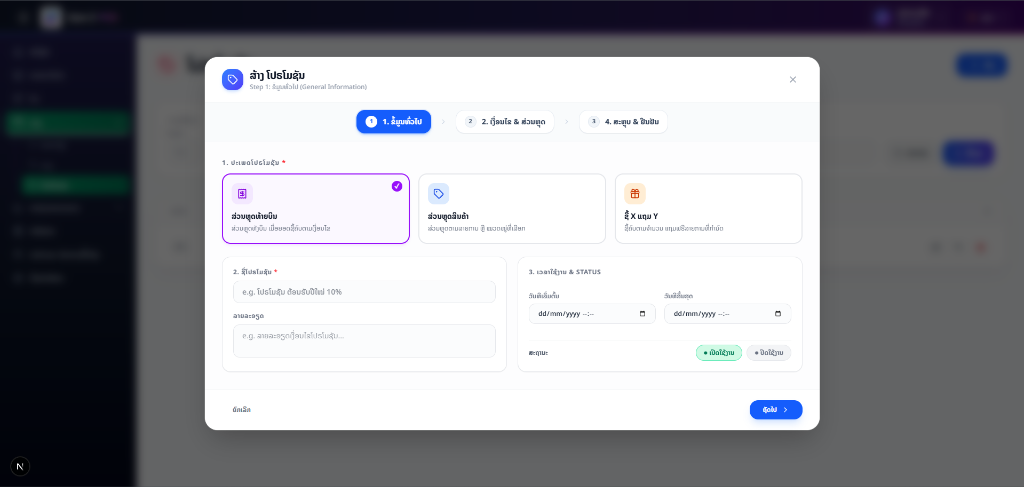
Boost your sales with smart automatic promos: Buy X Get Y (cheapest dish free, specific free item, or customer picks), item discounts, and VIP member bill discounts.
pos.nextlaos.com/promotions
Click to Enlarge
📸 Promotion Configuration: Choose between Buy X Get Y, Item Discount, or Bill Discount.
1
Buy X Get Y Promotion Modes
Choose from 3 flexible reward types:
1. Cheapest Item Free: Automatically gives 100% off the lowest priced qualifying dish.
2. Specific Gift: Automatically adds the restaurant's designated free item to the order.
3. Choice Gift: Pops up a selection menu so customers or cashiers can pick their free gift.
2
Customer & VIP Membership Tiers
Reward regular customers: General members, VIP (e.g. 10% off), or Partners (e.g. 15% off). Simply select the member at checkout and the discount applies automatically.
Printers
6. Kitchen, Bar & Receipt Thermal Printing
Fast and reliable 80mm thermal printing via LAN network or USB. Instant output with zero delay, automatically sorting kitchen dishes and bar drinks.
pos.nextlaos.com/settings/printers
Click to Enlarge
📸 Instant order ticket routing to kitchen upon order submission and checkout receipts.
1
Auto-Routing to Kitchen & Bar
When an order is placed, food items print at the kitchen printer while drinks and beers print at the bar counter printer. No more staff running around delivering paper slips.
2
Kitchen Order Cancellation Slips
If an item sent to the kitchen is cancelled or changed, the kitchen printer immediately prints a cancellation slip with the reason, so the chef stops cooking in time to save ingredients.
Stock & Expenses
7. Stock Tracking & Daily Store Expenses
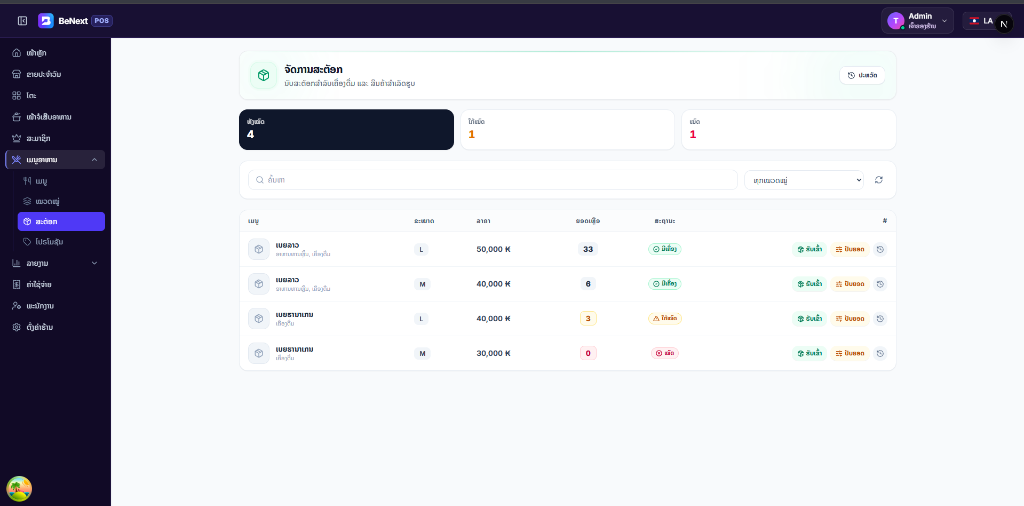
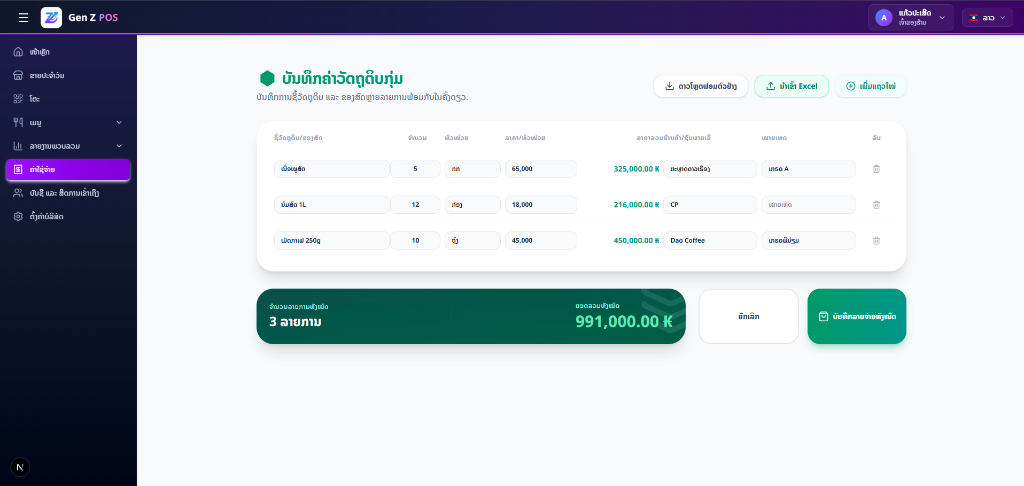
Track bottled beers, canned drinks, and packaged items with auto-deduction upon sale. Log daily expenses to accurately see your true restaurant net profits.
pos.nextlaos.com/stock
Click to Enlarge
📸 Inventory Management Screen: Remaining balance, status badges, and Stock In logs.
pos.nextlaos.com/stock
Click to Enlarge
📸 Expense Logging: Categorized into ingredients, utilities, rent, and staff payroll.
1
Auto-Deduct Stock on Sales
Turn on 'Track Stock' for bottled or canned drinks. Whenever sold via POS or ordered via QR, stock deducts automatically, with color badges warning when items run low or out.
2
Stock In Deliveries & Physical Count Adjustments
When suppliers deliver goods, tap 'Stock In' to add quantities. If physical counts differ at closing time, tap 'Adjust' to align system numbers with shelf reality.
Food Runner
8. Real-Time Food Runner Expediter Screen
A clear digital screen at the kitchen pickup counter. Shows dishes ready to serve so runners can tap to mark 'Served', preventing forgotten orders and wrong table deliveries.
pos.nextlaos.com/food-runner
Click to Enlarge
📸 Digital expediter interface providing live visibility into prepared table dishes.
1
Tap to Confirm Served Dishes
Runners check ready dishes on the screen. Once placed on the customer's table, tap the dish to mark it served. The cashier screen updates simultaneously.